Today, my website suddenly went down.
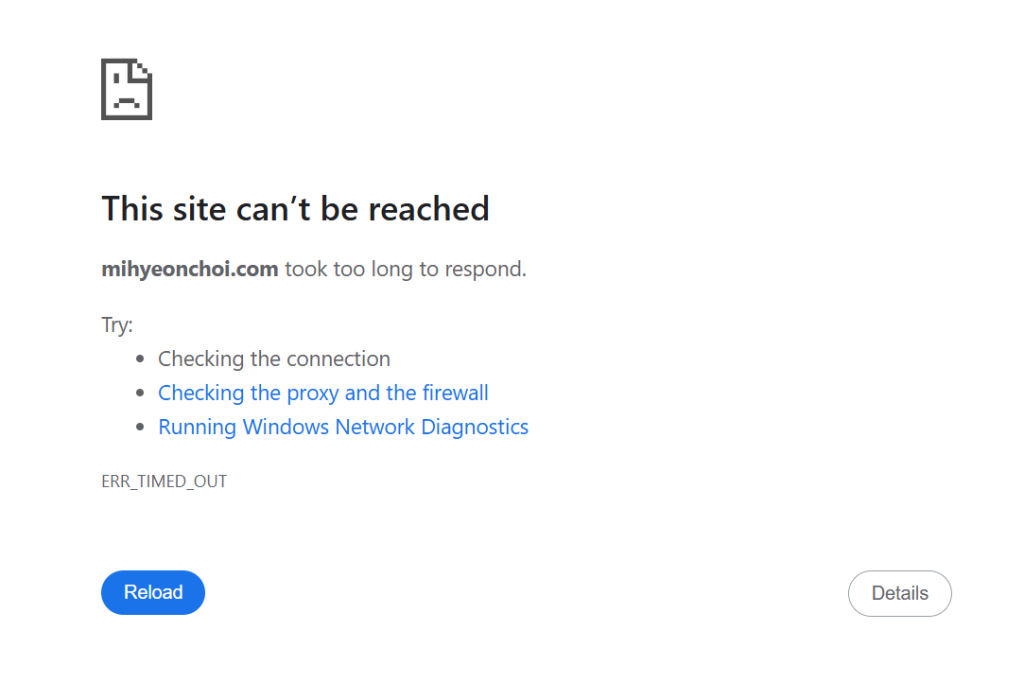
Unlike the previous database connection issue, this was a complete server crash. After a few hours of troubleshooting, I discovered it was a bot attack that overwhelmed my AWS free Tier instance. Here is how I fixed it and secured my server. It was quite a long journey.
Step 1: The Root Cause – Resource Exhaustion
The problem was that malicious bots were spamming my site with script injections. Even though I had strengthened my defense strategy (Check my last post!) about comments. It is an interesting topic, so I will write about bot attack next post. Anyway since I am using an AWS t2.micro instance with only 1GB of RAM, the MariaDB server was forced to shut down because the memory was full.
Step 2: Gaining Access via SSH (Port 22)
First, I went to EC2 terminal. But I couldn’t even connect to my EC2 terminal at first. So I simply rebooted the instance. I thought it would be fixed easily like DB issue last time.
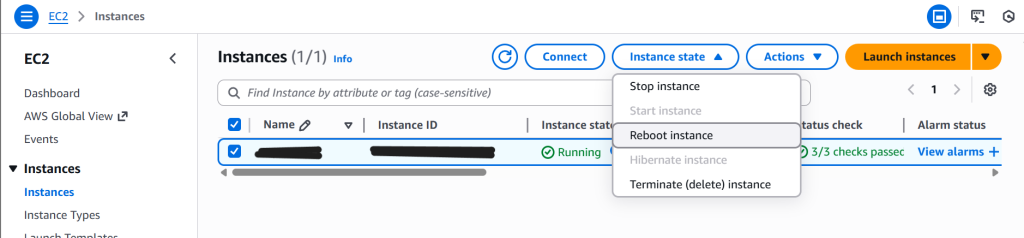
And the result?

Nope!
I did ‘Stop’ and ‘Start’ instance.
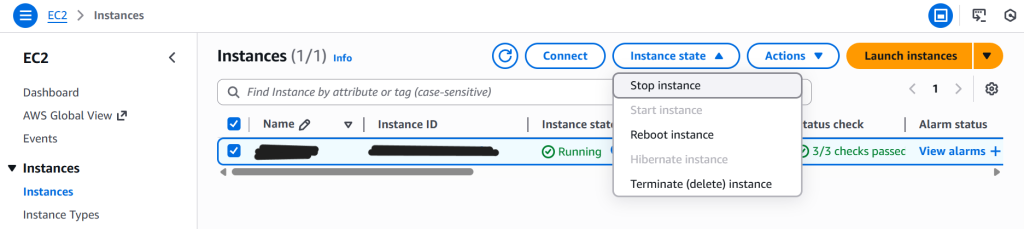
Fixed?

Nope!
And I realised it was because I hadn’t opened SSH Port 22.

I didn’t know it was important to access EC2 terminal when server is not working. Without hesitation, I clicked “Edit inbound rules” and added the SSH rule.
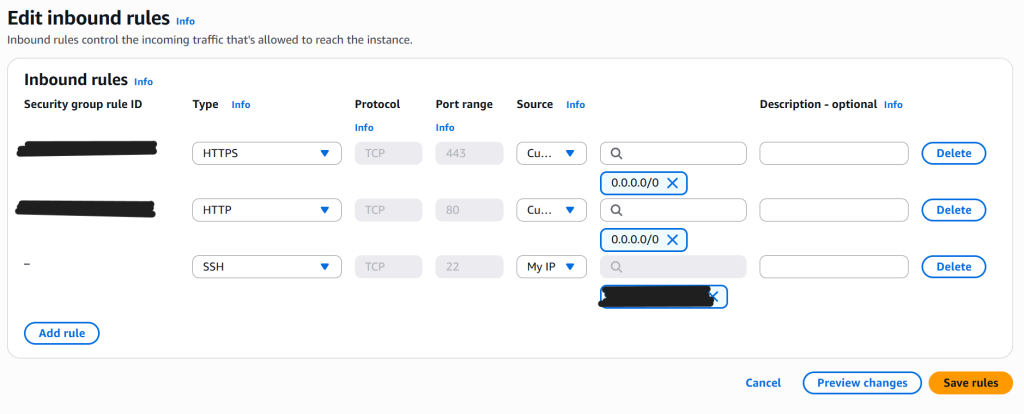
I set source as my IP for security reason. Then It should work.

Nope!
I guessed my desktop was using a dynamic IP not a static. So I temporary set ‘Anywhere-IPv4’ and now it works!
Lesson Learned:
- You must have Port 22 (SSH) to open your own IP to perform any server-side repairs.
- Setting the source to “Anywhere” worked, but it is less secure than “My IP”.
Continue to my next post…
nice solution for the server crash